
WhatsApp is one of the most widely used messaging apps on Android, allowing users to send messages, make voice and video calls, and share media instantly. Because the app stays connected in the background to deliver messages and notifications quickly, it can sometimes use more battery than expected. Many users notice this when checking their phone’s battery usage and seeing WhatsApp near the top of the list. In this guide, we’ll look at the main reasons WhatsApp may drain your battery and the simple steps you can take to reduce its power usage on Android.
Why Does WhatsApp Drain So Much Battery?
WhatsApp runs constantly to ensure messages arrive instantly. This background activity, combined with other features, can cause significant battery usage. The main reasons include:
1. Push Notifications
Every WhatsApp notification wakes the phone to display the alert and sometimes play a sound or vibration. Receiving frequent messages throughout the day, particularly in busy groups, gradually contributes to battery consumption.
2. Background Activity
WhatsApp continues running even when it is not open. It constantly checks for new messages, calls, and notifications. This requires both the processor and network to stay active, which can slowly reduce battery life, especially on older or mid-range devices.
3. Voice and Video Calls
Calls are more power-intensive than text messages. Video calls, in particular, keep the screen on, use network data, and process audio/video simultaneously, which can lead to faster battery drain during long conversations.
4. Location Features
Live location sharing and location-based features require continuous GPS tracking. If enabled, these features constantly use your phone’s location services, which can be one of the most battery-draining activities on a smartphone.
5. Contact Syncing
WhatsApp regularly syncs with your phone’s contacts to identify which people are using the app. This process runs quietly in the background and uses both internet and processing power. If your contact list is large, the syncing activity can contribute to gradual battery drain over time.
6. Media Transfers
Photos, videos, and voice notes require extra processing and network usage. If you are part of active groups that share large media files frequently, this can noticeably affect battery life.
7. Constant Internet Connection
WhatsApp keeps a continuous connection with its servers so messages and calls arrive instantly. Even when the app is not open, the phone maintains this connection in the background, which can slowly consume battery throughout the day.
7 Easy Ways to Reduce WhatsApp Battery Usage on Android
If you’ve noticed WhatsApp draining your Android battery, don’t worry. A few simple adjustments can make a significant difference. After testing several methods, I’ve found these seven strategies to be the most effective:
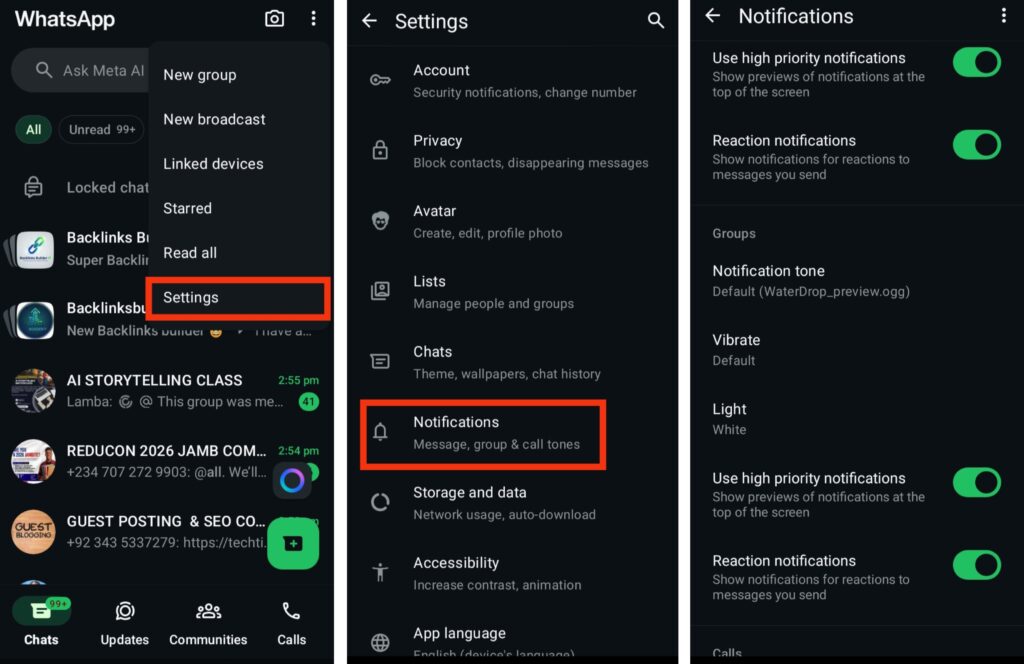
1. Manage Notifications
Notifications wake your phone and consume battery power, especially in active group chats. Managing which alerts you receive can save power.
How to do it:
- Open WhatsApp on your phone.
- Tap Settings.
- Select Notifications.
- Turn off alerts for messages, groups, or both, depending on your preference.
2. Disable Automatic Media Downloads
Automatic downloads of photos, videos, and audio in the background can consume both battery and data. Turning this off helps reduce unnecessary power use.
How to do it:
- Open WhatsApp.
- Tap Settings.
- Go to Storage and Data.
- Under Media Auto-Download, uncheck photos, videos, audio, and documents for both mobile data and Wi-Fi.
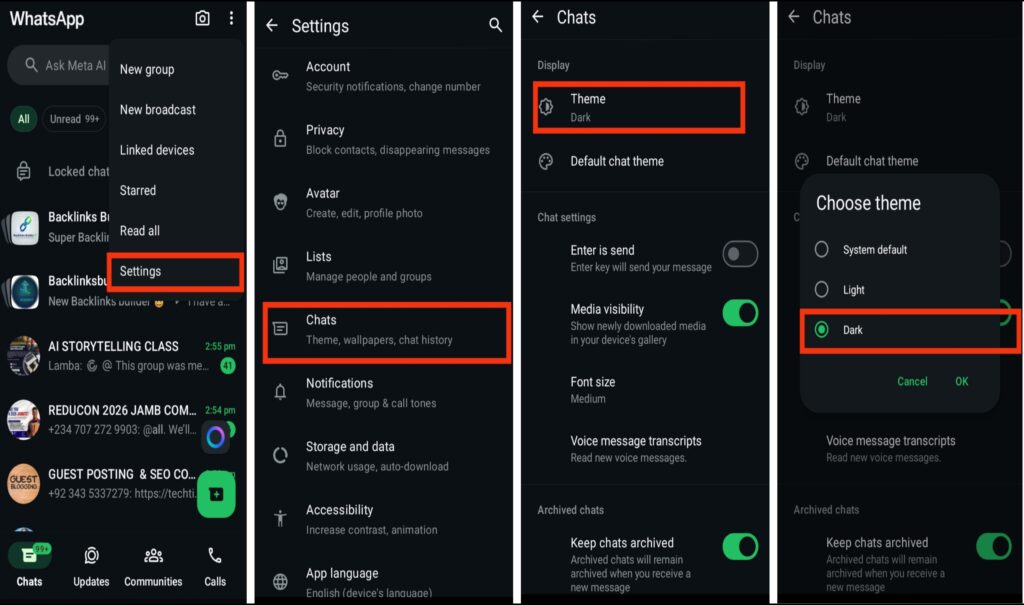
3. Enable Dark Mode
Using dark mode can save battery on phones with OLED or AMOLED screens. Dark pixels use less energy, and dark mode is easier on your eyes during nighttime use.
How to do it:
- Open WhatsApp.
- Tap Settings.
- Select Chats, then Theme.
- Switch from Light to Dark.
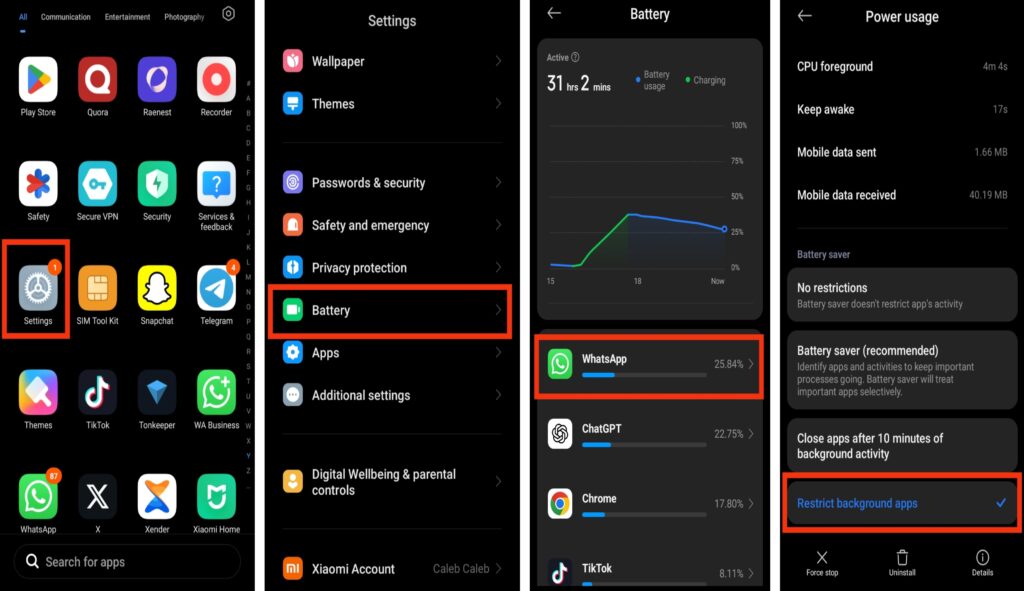
4. Restrict WhatsApp Background Activity
Background activity keeps the app checking for messages even when it is not open. Restricting background usage prevents unnecessary battery drain.
How to do it:
- Open Settings on your phone.
- Tap Battery.
- Select App battery usage.
- Find WhatsApp and choose Restricted or Limit background usage.
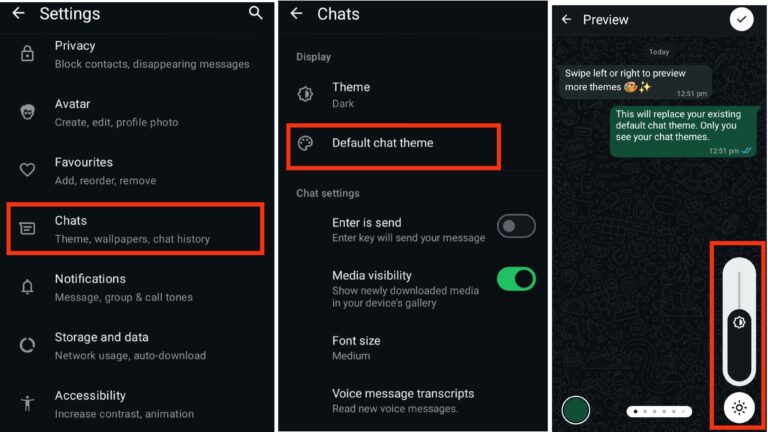
5. Lower Chat Wallpaper Brightness
Bright wallpapers can increase power usage because the screen uses more energy. Reducing the brightness of your chat wallpaper helps save battery without affecting your chats.
How to do it:
- Open WhatsApp.
- Tap Settings, then Chats.
- Select Wallpaper, then use the brightness slider to lower it to a comfortable level.
6. Update WhatsApp Regularly
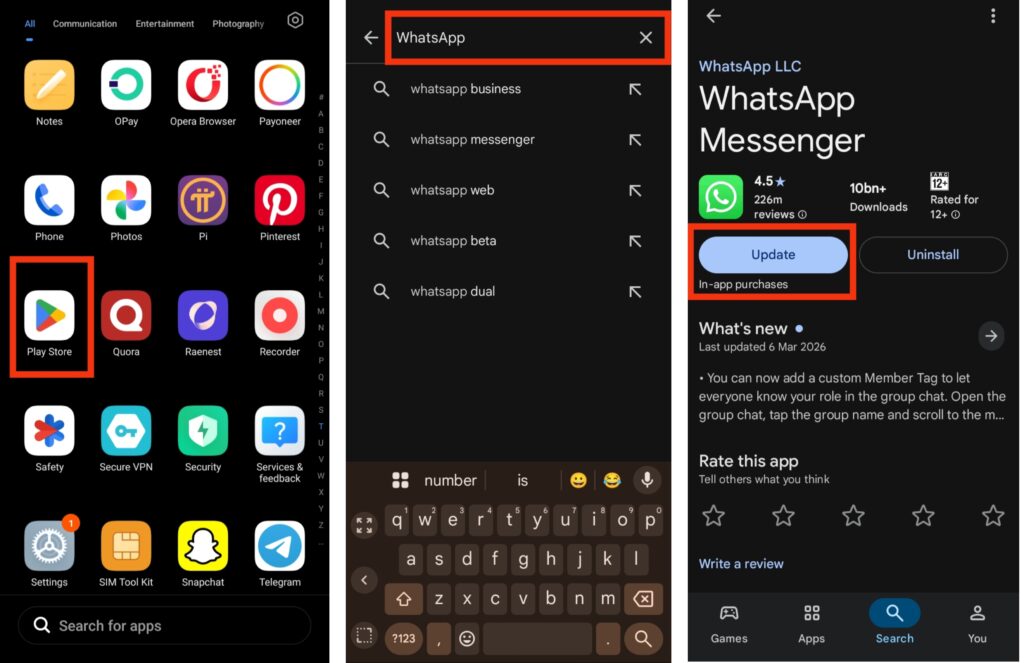
Battery issues can result from bugs in older versions. Updating ensures the app runs efficiently and reduces unexpected battery drain.
How to do it:
- Open Google Play Store.
- Search WhatsApp.
- Tap Update if available.
7. Restart Your Phone Regularly
A simple restart clears background processes and refreshes system performance. Many users notice improved battery life immediately after a restart.
Conclusion
WhatsApp is built to stay connected so messages, calls, and notifications arrive instantly. While this makes communication fast and convenient, it can also increase battery usage on some Android devices. By adjusting simple settings like notifications, background activity, media downloads, and display options, you can greatly reduce unnecessary power consumption. With these small changes, your phone can run more efficiently and your battery will last longer throughout the day.
Frequently Asked Questions (FAQs)
1. How can I check if WhatsApp is draining my battery on Android?
You can check this by opening your phone’s Settings, going to Battery, and viewing Battery Usage. If WhatsApp appears near the top of the list, it means the app is consuming a large amount of power.
2. Does clearing WhatsApp cache help reduce battery drain?
Yes. Clearing the app cache removes temporary files that may slow down the app or cause unnecessary background activity. This can sometimes improve performance and reduce battery usage.
3. Can an outdated Android system cause WhatsApp battery drain?
Yes. If your Android system is outdated, it may not manage apps efficiently. Updating your phone’s software can improve battery optimization and reduce excessive power usage from apps like WhatsApp.
4. Why does WhatsApp use more battery in group chats?
Group chats often send frequent messages, photos, and videos. Each message triggers notifications and background activity, which can increase battery consumption over time.
5. Does poor internet connection affect WhatsApp battery usage?
Yes. When your internet connection is weak, WhatsApp repeatedly tries to reconnect to its servers. This constant reconnection process can cause the phone to use more battery power.